Auto BCC & CC for Gmail by cloudHQ: why I probably have more emails than anyone I know
If you opened my Gmail on a random Tuesday, you'd probably close the laptop and slowly back away. Threads, replies, copies of replies. It's a lot. I'm fairly sure I'd be in the running for some kind of unofficial record.
The reason is one rule I set up a few months ago that automatically adds certain addresses in CC or BCC to my emails. I use Auto BCC & CC for Gmail by cloudHQ for it, and I wouldn't give it up for anything.
What my inbox looked like before
I work with clients, a small team, a few outside vendors, and usually five or six projects at once. That meant a constant stream of little questions in the back of my head. Did I copy Sarah on that quote? Did the client agreement make it into our records, or is it only sitting in their inbox? Where's the thread from three weeks ago where we settled the delivery scope?
Every day I lost a chunk of time adding extra addresses by hand and forwarding sent emails to our archive. On the days I forgot, someone would eventually ask me to forward "what we discussed", and I'd be digging through my sent folder trying to piece it back together. Then I came across Auto BCC & CC for Gmail by cloudHQ.
How I set it up, step by step
It took me about two minutes. You add the extension to your browser, tell it which addresses to copy and when, and that's it. These are the exact steps I followed:
1) Go to the cloudHQ website and select the product you want to install and use. In my case: Auto BCC for Gmail.
2) Click to add it to Chrome as an extension.
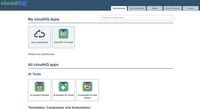
3) Configure your rule the way you like it in your dashboard environment.
Picture 1: my dashboard
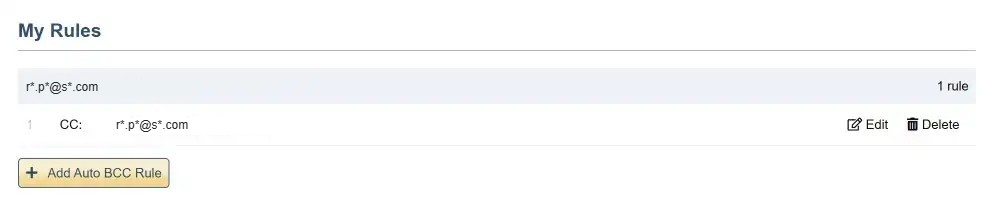
4) In my example, a simple rule was created: in every email I send, r*.p*@s*.com is automatically added to the CC line.
Picture 2: my simple rule
My rules in practice
My rules copy an archive address, a couple of team logs and one of my secondary accounts, depending on who I'm writing to. Client emails go to the client archive, vendor emails go to the project log, and so on. So yes, those inboxes fill up fast, and the numbers look a bit unhinged if you don't know what's going on. But every one of those emails is there for a reason, and it's filed exactly where I'd go looking for it.
Example:
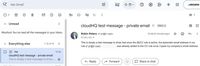
I created a test message, which I sent to my own company's email address: i*@s*.nl.
While I was typing this email, the tool automatically added the email address I configured in my rule (r*.p*@s*.com).
Once sent, I received it in my Gmail inbox.
Picture 3: the actual email in my inbox
It's that simple!
What actually changed
I always have the paper trail. Whether it's our CRM, a shared archive or a dedicated tracking inbox, every outgoing email ends up where it should. When someone asks what was promised, when it went out or who was in the loop, I can answer in seconds.
I stopped thinking about it. I didn't realize how much headspace those tiny admin tasks took up until they were gone. Now I write the email, send it, and get back to real work.
It stays inside Gmail. I've tried enough productivity tools with their own dashboards and logins to be wary of anything new. This one works inside Gmail itself. The addresses show up in the CC or BCC field before I send, so I can change them for a one-off email, and the rest of the time I forget it's even there.
The rough edges
Starting is free, which is great. But the price of the Premium package (for now, while I only use one cloudHQ product) is too high in my opinion.
Would I go back?
No. These days it's as much a part of my morning as coffee. Handling my email without it would feel about as practical as writing letters by hand and going out for stamps.
So if you ever spot thousands of emails stacked up across my folders, there's no need to stage an intervention. They're all exactly where they're supposed to be.
Want to try it yourself? Have a look at Auto BCC & CC for Gmail or the other apps on https://www.cloudhq.net.
Written by Robin Peters. AI was only used to check spelling and grammar.